

Download Forewave Video Converter – Simple, Fast Video Conversion Tool
Overview: Why Simplicity Still Matters in Video Conversion
In today’s multimedia‑heavy environment, converting video files from one format to another is no longer a luxury—it’s a necessity. Whether you’re a content creator needing to re‑encode footage for YouTube, a teacher preparing lessons for different classroom devices, or just a casual user trying to watch a family video on a smartphone, a reliable video converter can make or break the experience. Forewave Video Converter positions itself as the antidote to the cluttered, feature‑overloaded converters that dominate the market. It promises a drag‑and‑drop interface, a single‑click output selection, and a no‑frills workflow that can be mastered in seconds.
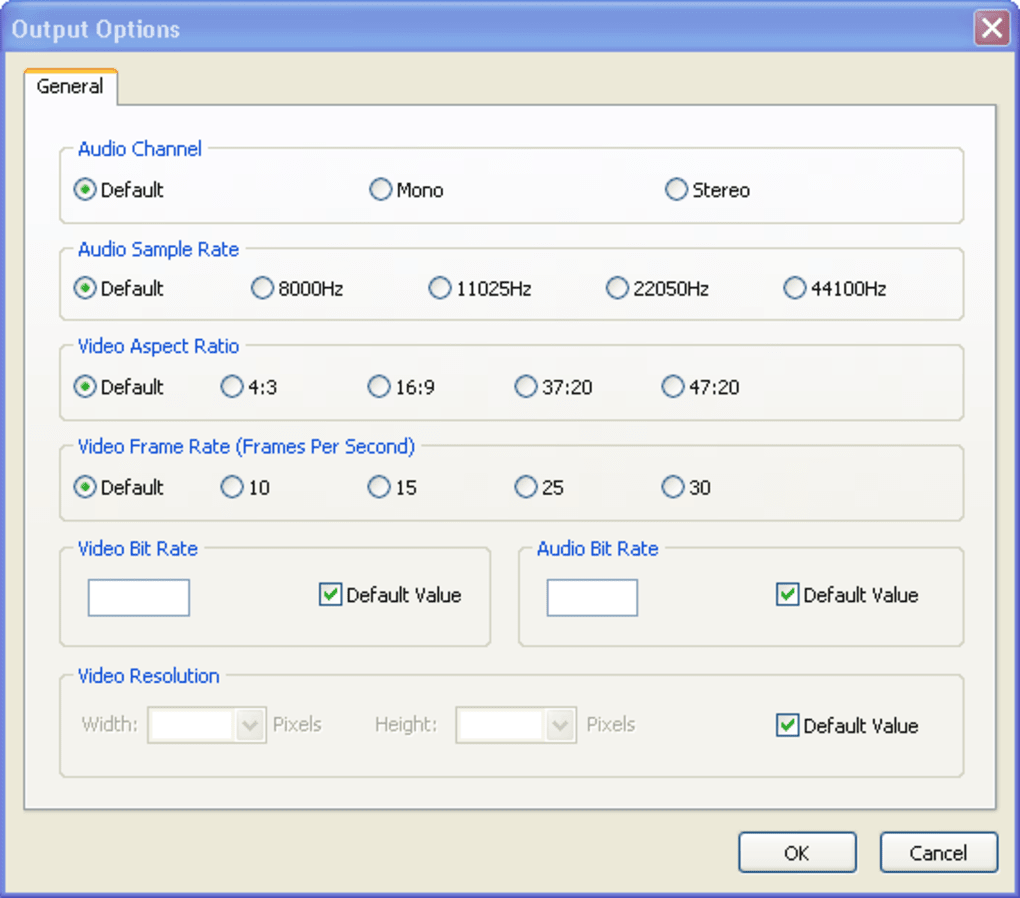
The core philosophy behind Forewave is “less is more.” While many competing tools boast hundreds of tweaking options—bitrate sliders, audio channel mixers, subtitle burners—Forewave pares everything down to the essentials. Users add files, choose an output format from a concise drop‑down menu, set a destination folder, and click “Convert.” The result is a straightforward process that anyone can follow, even without prior video‑editing knowledge.
However, simplicity does not come without trade‑offs. The free trial limits conversions to three minutes per file and stamps a watermark on the output, which can be a deal‑breaker for professional work. Quality-wise, the converter delivers average results; it’s fast but not always the sharpest in terms of bitrate preservation. Still, for those who need a quick, secure, and easy solution to convert occasional clips—especially on Windows or macOS—Forewave offers a compelling entry point. In the sections that follow we’ll dissect its feature set, walk through the installation process, evaluate compatibility, and weigh the pros and cons to help you decide if it’s the right tool for your workflow.
Key Features That Define Forewave Video Converter
- Drag‑and‑drop file import for instant file selection.
- Simple drop‑down menu with the most popular output formats (MP4, AVI, MOV, WMV, MKV, etc.).
- One‑click conversion with automatic folder selection.
- Fast conversion engine optimized for modern CPUs.
- Basic preset profiles for mobile, web, and desktop playback.
- Support for batch processing (multiple files at once).
- Cross‑platform availability: Windows, macOS, Android, and iOS.
- Secure processing—no internet connection required after download.
- Free trial version with a three‑minute limit per video and a small watermark.
Speed and Usability
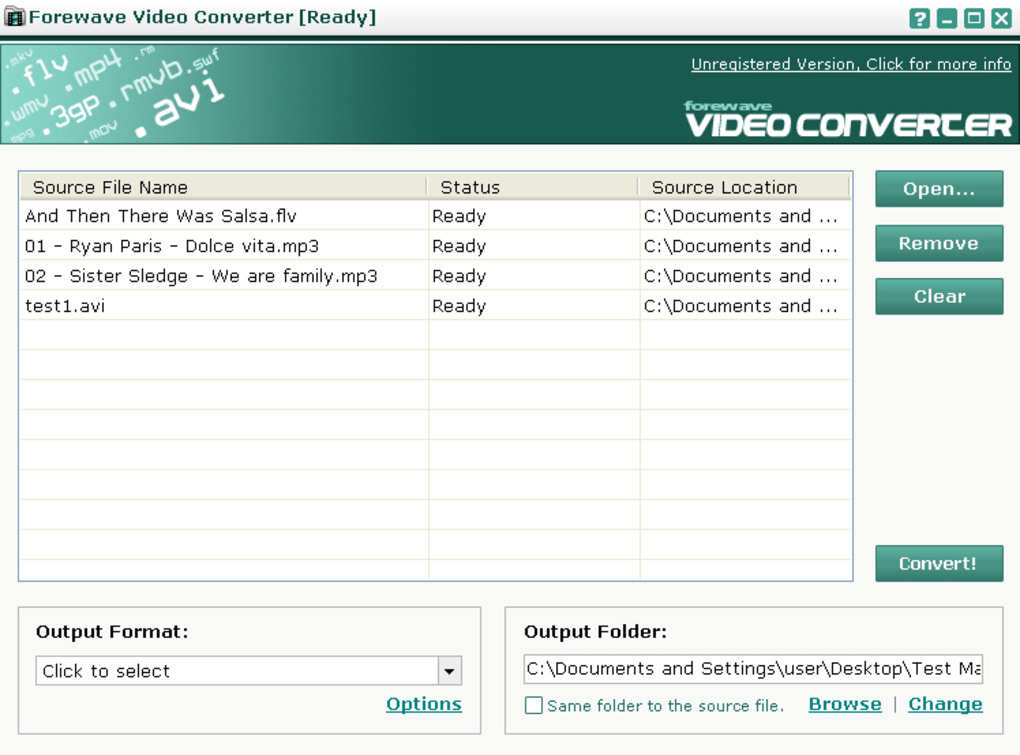
Speed is one of Forewave’s strongest selling points. The conversion engine leverages hardware acceleration where available, meaning that on a mid‑range laptop the typical 10‑minute HD video can be re‑encoded in under a minute. The interface is intentionally minimalistic: a central pane displays the list of files awaiting conversion, a compact toolbar houses the format selector, and a progress bar gives real‑time feedback. Because there are virtually no advanced settings, users are not distracted by confusing jargon such as “CRF,” “GOP size,” or “pixel format.” This makes the app especially attractive for beginners or for those who need to process videos on the fly without diving into technical details.
Limitations of the Free Version
The trial version, while generous in allowing users to explore the UI, imposes two notable restrictions. First, each video is capped at three minutes of conversion time, which is sufficient for testing but insufficient for full‑length movies or tutorials. Second, a semi‑transparent watermark appears in the lower‑right corner of the output file. This watermark is removed in the paid version, which is priced at a modest one‑time fee. For users who need high‑quality, watermark‑free outputs, the upgrade becomes essential.
Security and Privacy Considerations
Unlike many web‑based converters that upload files to remote servers, Forewave performs all processing locally on the user’s device. This eliminates concerns about data leakage, especially for sensitive corporate videos or personal recordings. The installer is signed with a reputable certificate, and the software does not bundle adware or unnecessary third‑party plugins. Regular updates (when a license is purchased) address minor bugs and add support for newer codecs, ensuring the tool stays compatible with emerging video standards.
Installation, Usage & Compatibility Across Devices
Step‑by‑Step Installation Guide
Installing Forewave Video Converter is as straightforward as its core functionality. Begin by visiting the official website and clicking the “Download” button for your operating system. The installer is a compact .exe for Windows or a .dmg for macOS. Once the file is saved, double‑click to launch the setup wizard. The wizard walks you through a standard three‑step process: accept the license agreement, choose an installation folder (the default is fine for most users), and click “Install.” After the progress bar completes, you can launch the program directly from the final screen or via a desktop shortcut.
For mobile users, the Android and iOS versions are available through their respective app stores. Installation follows the typical app download flow: tap “Install,” grant storage permissions, and open the app once the download finishes. The mobile version mirrors the desktop experience, with a touch‑friendly drag‑and‑drop area and a simplified format selector.
Using the Converter: From Import to Export
Once installed, using Forewave is a breeze. Open the application and you’ll see a large gray box labeled “Drop files here.” You can either drag video files from Explorer/Finder into this area, right‑click inside the box and select “Open,” or click the “Add Files” button to browse manually. After the files appear in the queue, select the desired output format from the drop‑down menu located at the top of the window. Forewave offers a curated list of the most common containers and codecs, ensuring that the resulting file will play on the majority of devices without additional tweaking.
Next, choose the destination folder by clicking the folder icon next to the “Output Folder” field. The default is a sub‑folder named “Forewave_Output” within your Documents directory, but you can change it to any location you prefer. Finally, hit the bright green “Convert” button. A progress bar appears beneath each file, and you can pause or cancel conversions at any time. When the process finishes, a notification pops up confirming that the conversion was successful, and you can open the output folder directly from the dialog.
Compatibility: Windows, macOS, Android & iOS
Forewave Video Converter is designed to run on the latest consumer operating systems. Officially supported platforms include:
- Windows 7, 8, 10, and 11 (both 32‑bit and 64‑bit builds).
- macOS 10.12 (Sierra) and later, including the newest Apple Silicon Macs (via Rosetta 2 translation if needed).
- Android 6.0 (Marshmallow) and up, optimized for both phones and tablets.
- iOS 12.0 and later, supporting iPhone, iPad, and iPod touch.
The software automatically detects the underlying hardware capabilities and enables hardware‑accelerated encoding when supported (e.g., Intel Quick Sync, NVIDIA NVENC, or Apple’s VideoToolbox). This ensures that conversion times remain short even on older machines. However, users on very low‑end devices may notice longer processing times, especially when converting high‑resolution (4K) footage.
Pros, Cons & Frequently Asked Questions
Pros
- Extremely simple interface: No steep learning curve.
- Fast conversion speeds: Utilizes hardware acceleration.
- Cross‑platform support: Available on Windows, macOS, Android, and iOS.
- Local processing: No need to upload files to the cloud.
- Batch conversion: Handles multiple files in one go.
Cons
- Trial limitations: 3‑minute conversion cap and watermark.
- Average output quality: Lacks advanced bitrate controls.
- Limited format options: Not as exhaustive as premium converters.
- No built‑in video editor: Cannot trim or merge clips.
- Paid upgrade required for full features: No free unlimited version.
FAQ – Your Questions Answered
Can I convert 4K videos with the free version?
Yes, the free trial can process 4K files, but each clip is still limited to three minutes and a watermark will be applied. For full‑length 4K conversion without watermarks you need the paid license.
Is Forewave safe to use on corporate computers?
Absolutely. The installer is digitally signed, the software runs locally without sending data to external servers, and it does not bundle adware or telemetry. IT departments can safely whitelist the executable.
What audio formats are supported?
Forewave supports the most common audio codecs, including AAC, MP3, AC3, and PCM. The audio track is automatically carried over to the output file unless you choose a format that does not support it.
Can I customize the output resolution?
The free version only offers preset resolutions (720p, 1080p). The paid version unlocks a custom resolution field, allowing you to specify any width and height you need.
Is there a refund policy for the paid license?
Yes. The developer offers a 30‑day money‑back guarantee. If you are not satisfied with the performance or features, you can request a full refund within that window.
Review Summary
Forewave Video Converter excels at delivering a no‑nonsense experience for users who need quick, secure conversions without the clutter of advanced settings. Its fast engine, cross‑platform reach, and local processing model make it a trustworthy choice for both home and office environments. However, the restrictive trial and average output quality mean that power users or professionals will likely need to purchase the full version—or consider a more feature‑rich competitor. Overall, Forewave earns a solid 3.8 out of 5 stars, reflecting its strength in simplicity balanced against its limited depth.
Conclusion & Call to Action
If you’ve been searching for a video converter that lets you get the job done with the fewest clicks possible, Forewave Video Converter is worth a try. Its drag‑and‑drop workflow, rapid conversion times, and privacy‑first design provide a refreshing alternative to the over‑engineered tools that dominate the market. While the free version’s three‑minute cap and watermark may feel restrictive, they give you a genuine feel for the interface before committing to the one‑time purchase that removes those limits.
For occasional users—students converting lecture clips, families digitizing home videos, or small businesses needing a quick format change—Forewave’s simplicity can save valuable time. Professionals who demand fine‑tuned bitrate control, advanced subtitle handling, or batch‑editing features may want to explore higher‑end converters, but they’ll still appreciate Forewave’s straightforward approach as a secondary, on‑the‑go solution.
Ready to experience hassle‑free video conversion? Download Forewave Video Converter now and start converting your media instantly. Remember, the trial is free and fully functional (aside from the time limit and watermark), so you can evaluate whether the paid upgrade aligns with your long‑term needs. Happy converting!







